
get started on parts.cat.com


New to ordering parts online?

Let us introduce you to the main sections of Parts.Cat.Com. Here you can learn more about:

Create a CAT ID         Control Center        Search For Parts         Get To Know Your Shopping Cart         Pick Up & Delivery        Summary & Payment        


If you have any additional questions or would like to request a Parts.Cat.Com training session, don't hesitate to email us at ebusiness@finning.ca


Create a CAT ID


Have a Finning account?
 Call 1 888 Finning or email digitalservices@finning.com to request CAT ID invite and you will receive an invite link to activate your CAT ID pre associated with your Finning Account.

────────────────────────── OR ─────────────────────────────

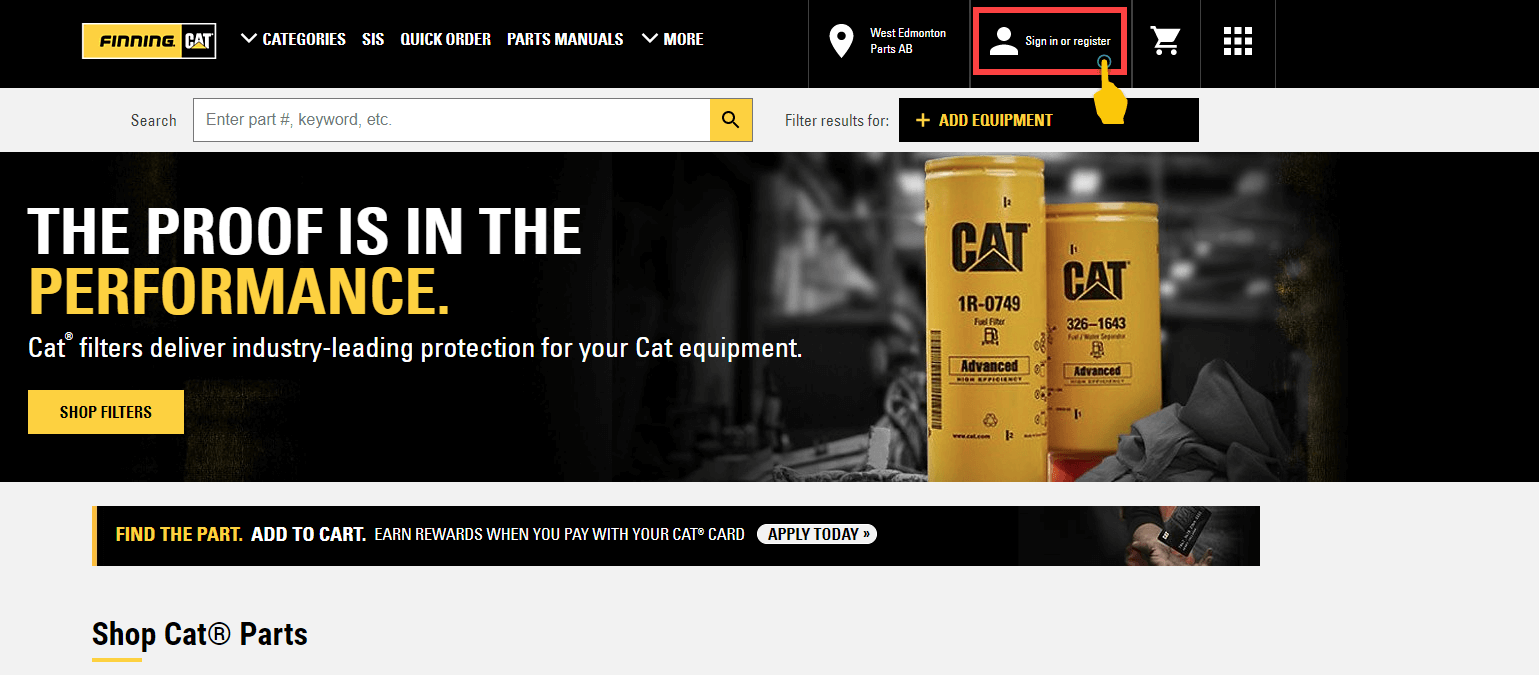
  1. Go to parts.cat.com or Cat Central app, click sign in/register (person icon), then select "Create Account"
  2. Fill out registration fields.
  3. Set your username and password.
  4. Start using the site as a registered user. Wait for confirmation from Finning that your CAT ID has been linked to your Finning account for customer preferred pricing and set up.
You can expect to hear from Finning within one business day to confirm your account setup is correct.

control

Control Center


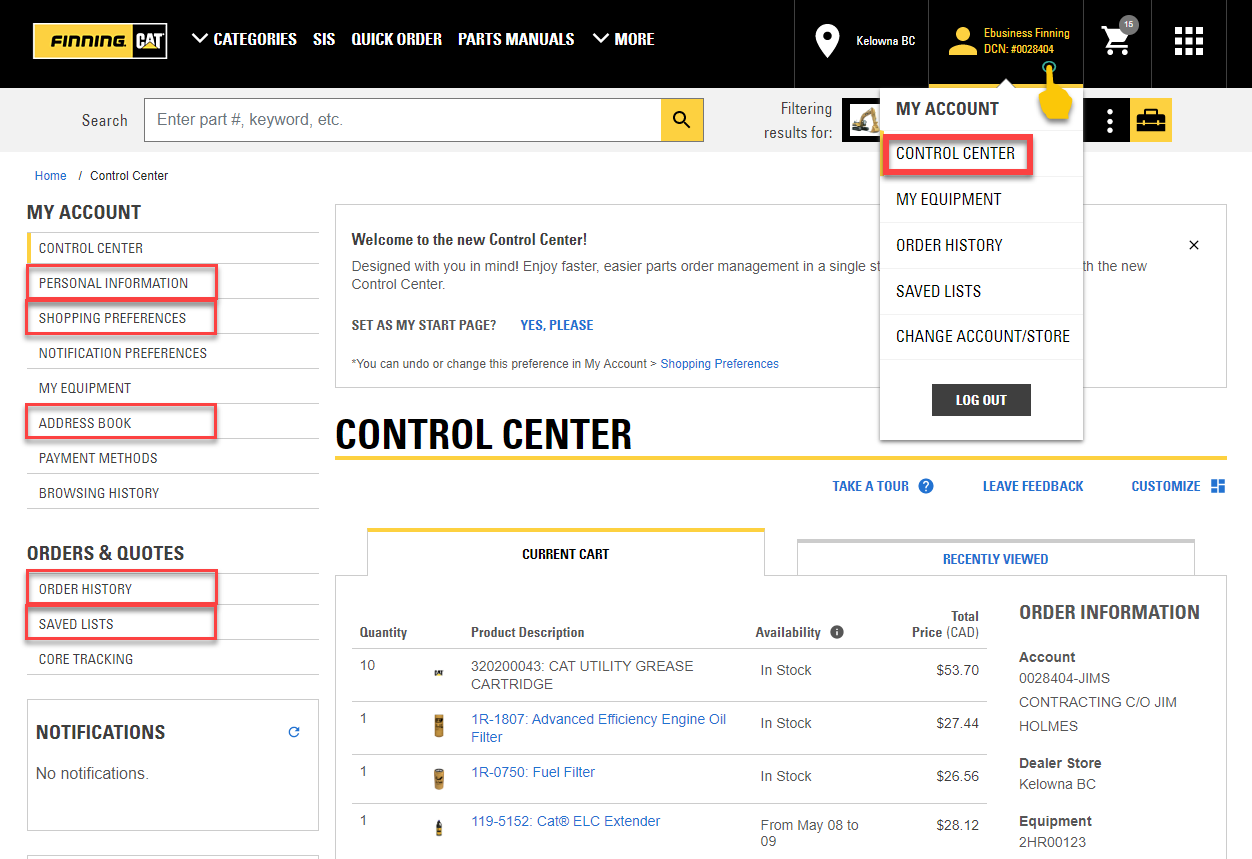
The Control Center section allows you to manage your settings for your shopping experience as well as review your online activity. Click on your profile in the upper right hand corner to access this section. You will see a pop out window with various options to take action or view information on your profile.


  1. Keep your personal information such as your email address up to date.
  2. Review My Equipment to edit and manage your equipment.
  3. Review your order history and Invoices.
  4. Review Orders to Approve (if enabled).
  5. Review Quotes.
  6. Create and view parts list for easy reference under the Saved Lists section.
  7. Set your notification and shopping preferences to decrease unnecessary emails and clicks per ord.
  8. Save multiple shipping and billing addresses for easy access during checkout.
  9. View your CAT REWARDS balance.

search

Search For Parts


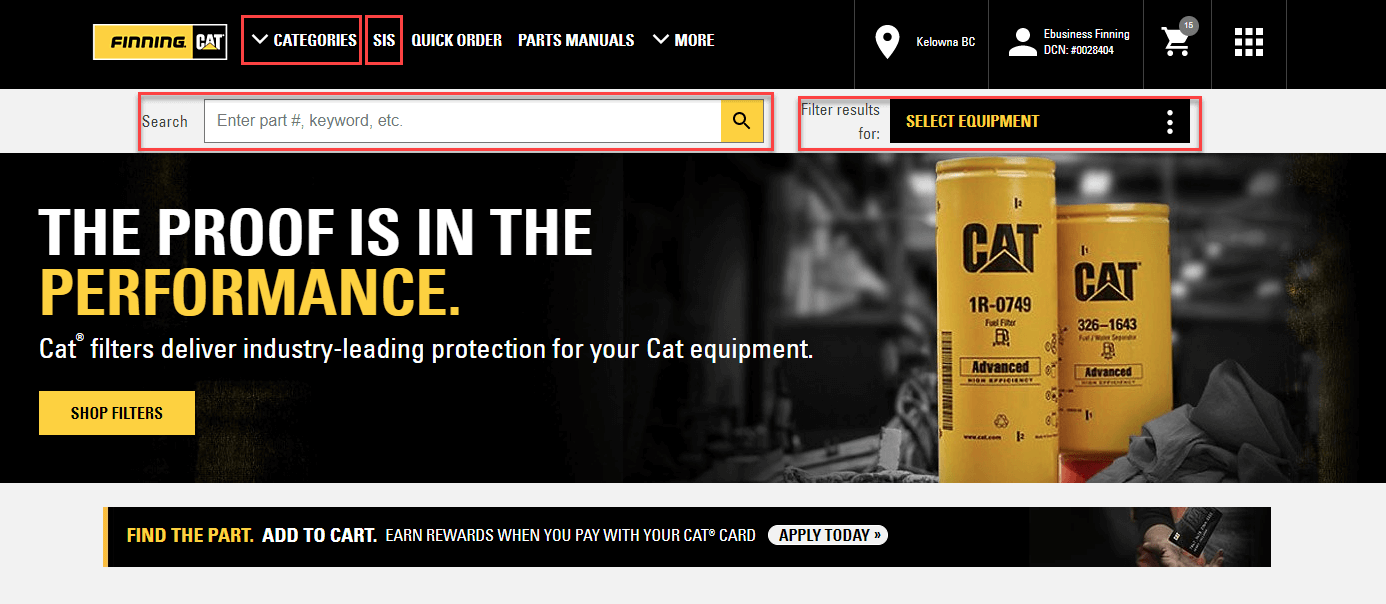
Parts.Cat.Com allows you to search for your parts many ways. These include:


  1. Search parts in the SHOP drop down – narrow down by part category.
  2. Search parts in SIS and easily check out through Parts.Cat.Com.
  3. Enter a part number or keyword in the search bar.
  4. Select your Equipment to ensure fit and use shop parts to find parts specific to your selected equipment.


shopping

Get To Know Your Shopping Cart

Your shopping cart shows you the pricing and availability of your parts and requires certain information before you can check out. It also enables you to import parts lists as well as export or save them for your reference or future use.

Know the parts you need?

1. Use QUICK ORDER to easily add parts to your cart.

quick order quick order

2. Import a file using file types suggested, select pre-saved list or enter items manually to add parts to your shopping cart.

add parts add parts

3. Important information to review while on SHOPPING CART PAGE:
Order Information
a) Account – ensure you are ordering on the correct account.
b) Dealer Store – ensure you have selected the store from where you want the order to originate or pick up from.
c) Equipment* – click drop down to pick prepopulated serial number OR type in field. *Field is required

shopping cart shopping cart

Utilize action buttons on top right of shopping cart to gain access to quick features:

get started get started

1) Lightning bolt – learn what’s new on parts.cat.com
2) Floppy Disc – Save current cart
3) Printer – Print cart
4) Garbage Can – Delete all items in cart
5) Connected Nodes – Share cart link with others
6) Cog/Bolt – Customize cart settings – choose from Standard or Compact view, source or date availability and more.

Did you know that if a part says, “Contact Dealer”, you can still check it out and purchase it online? If you have questions about this part, just use our online chat where we connect you with our parts counter.


pickup

Pickup & Delivery

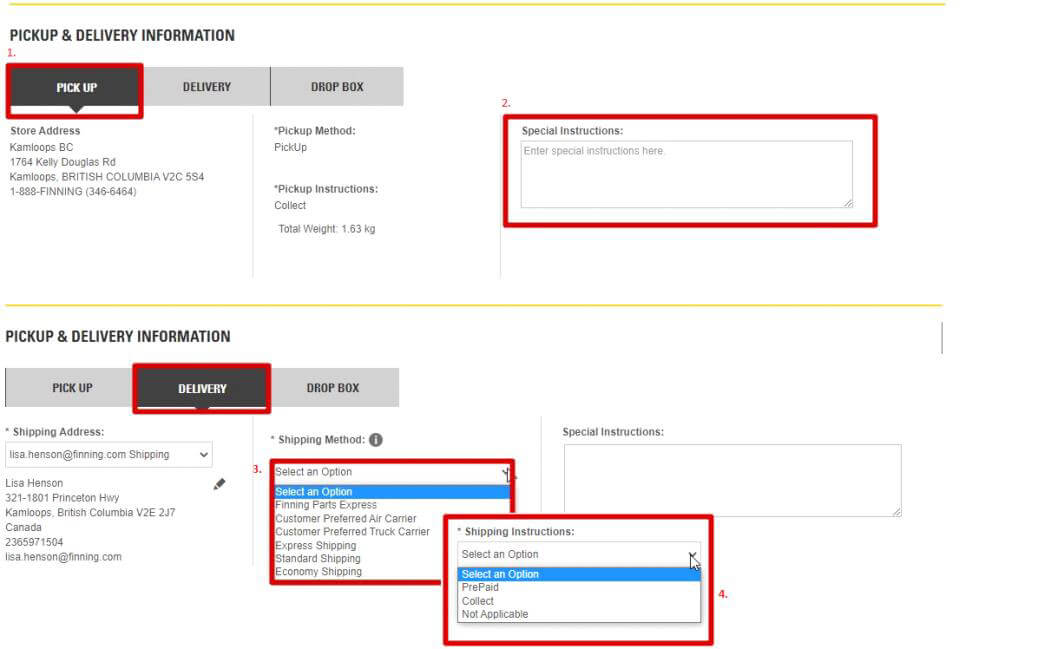
In this section you provide Finning with information on how would like to you receive your order.

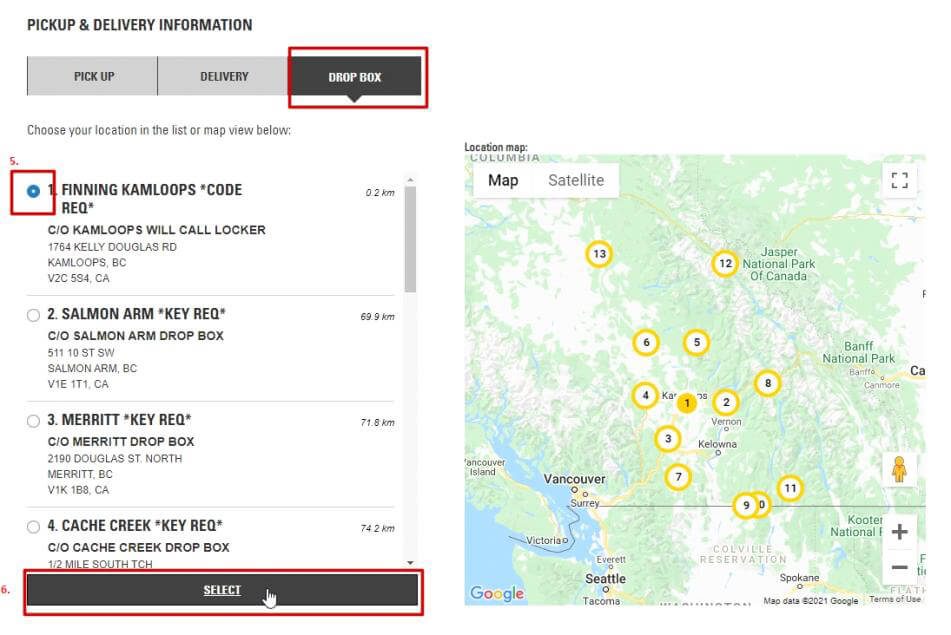
Pick up and Drop Box Tab

  1. Pick up - Pick up from Finning branch
  2. Drop Box - Select drop box location. If you don’t see the drop box you prefer, verify the Finning branch you are shopping from. Not all branches ship to all drop boxes.
  3. Requested Pick up Day – Check on every order. System defaults to 3 business days out.
  4. Special instructions – Add additional information you may want to provide.
pick up delivery pick up delivery

Delivery Tab

  1. Delivery Address – choose, edit or add delivery address
  2. Delivery Instructions – Select from Collect (customer pays own shipping vendor) or PrePaid (customer pays FINNING for shipping)
  3. Estimated Charges – Click ‘i’ for more information. Will show miscellaneous or eco fees in this field (filters, fluids etc) AND/OR FEES for Standard /Econo Prepaid shipping choices.
  4. Requested Pick up Day – Check on every order. System defaults to 3 business days out.
  5. Special instructions – Add additional information you may want to provide.
pick up delivery pick up delivery


summary

Summary & Payment


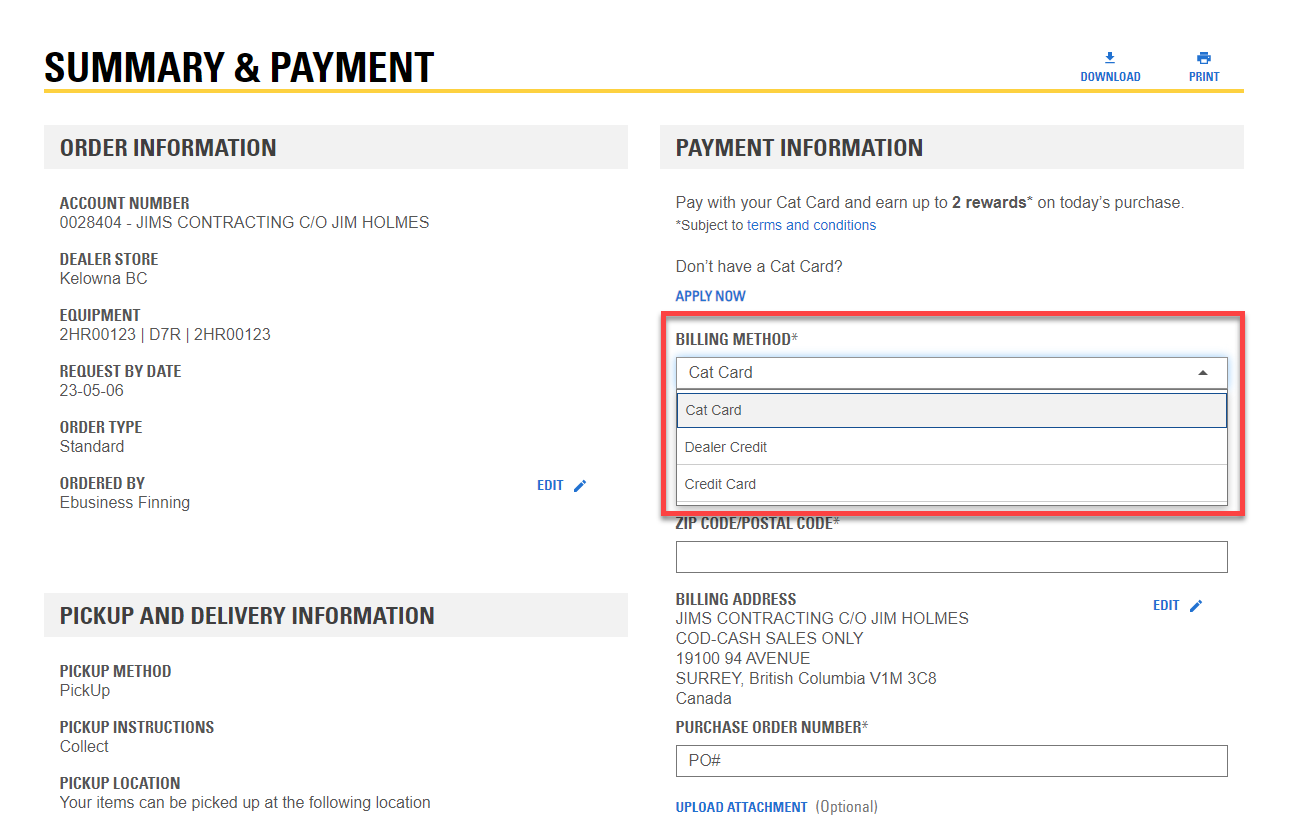
Review Order Information and add Payment Information


1. Choose payment method - Dealer Credit, Credit Card, CAT Commercial Account or CAT Credit
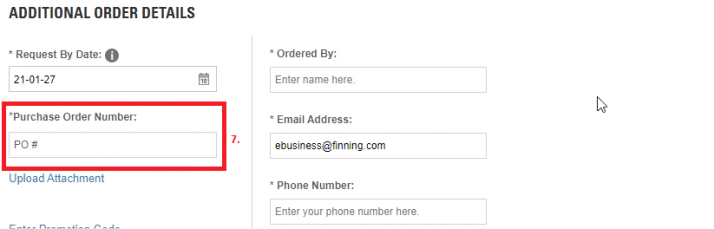
2. Enter Purchase Order number
3. Promotion Code – Enter valid promo code if applicable for order
4. Create QUOTE or PLACE Order once details finalized.